Android ⇄ PC over Wi‑Fi · No cable
Free WiFi file transfer for Android. No cable.
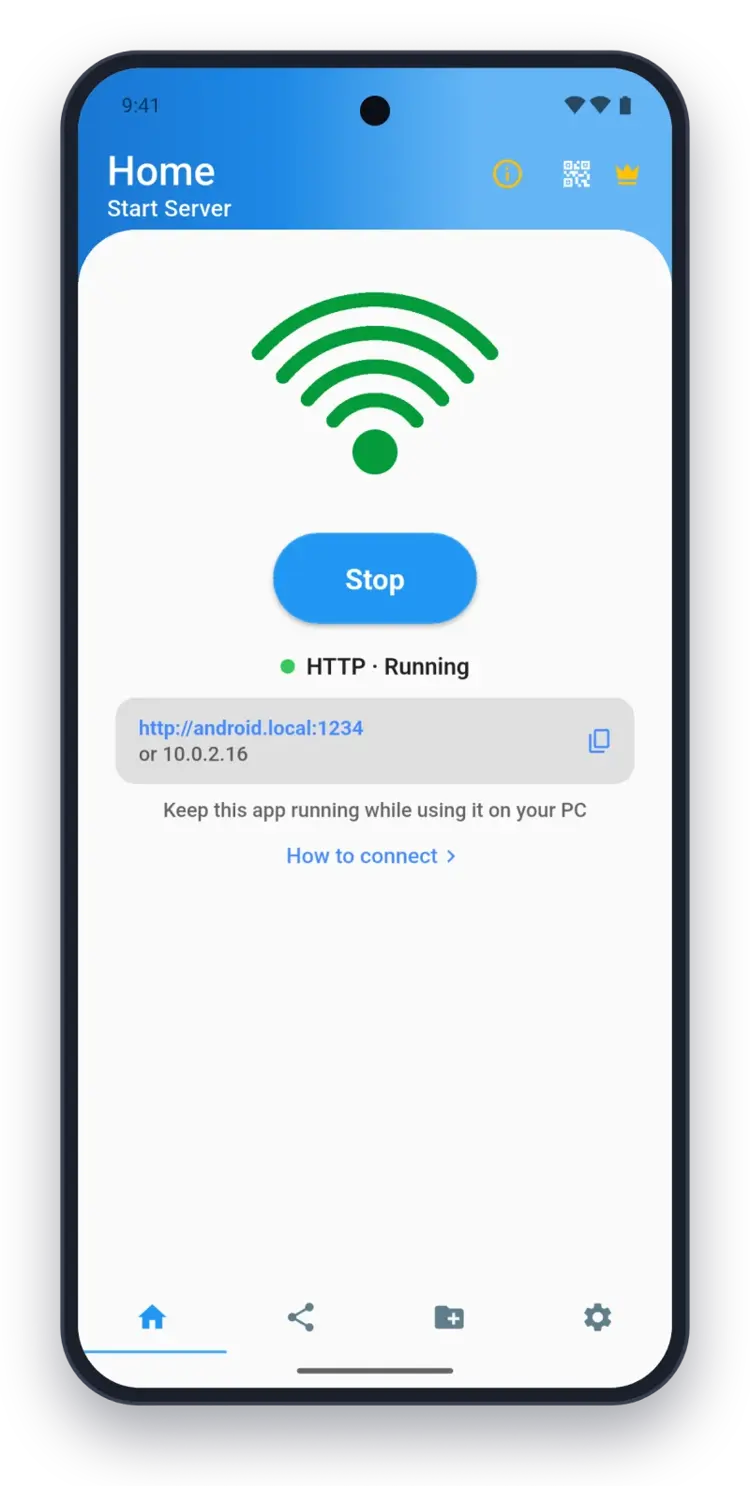
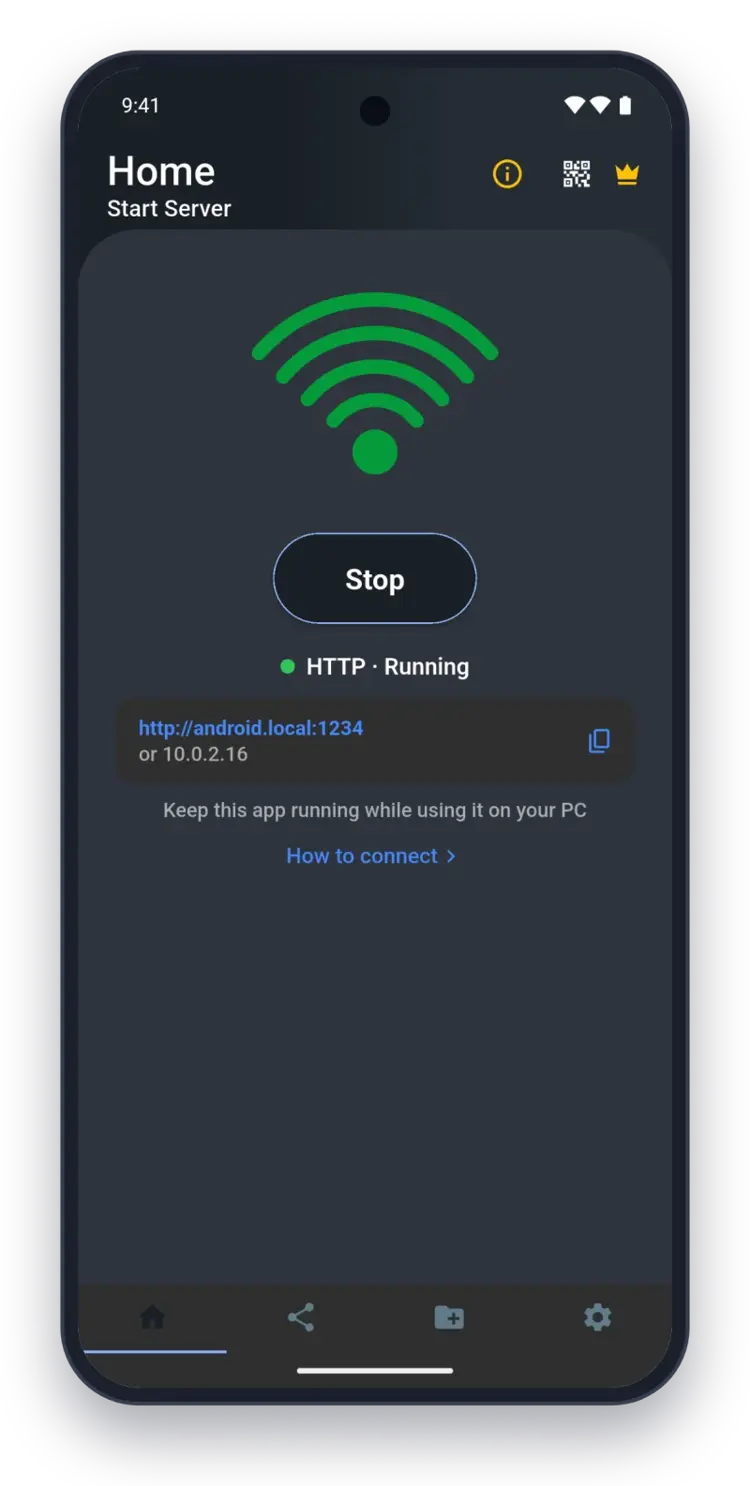
Move photos, videos and documents from your Android phone to your PC, or from your PC to your phone, over Wi‑Fi. Open the address the app shows in any computer's browser. Free, no account, nothing to install on the PC.
Free · No account · No cloud · Uninstall anytime
Features
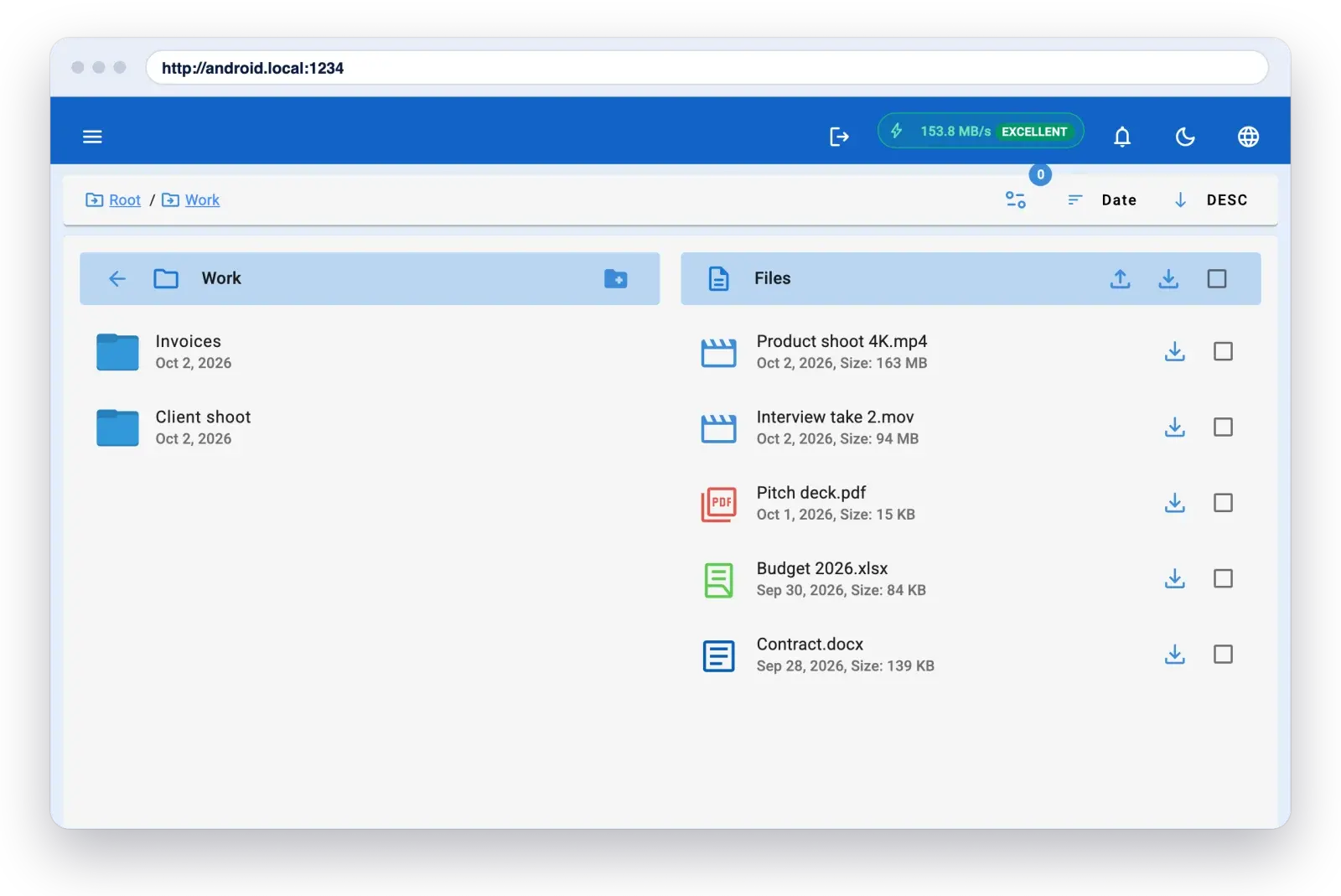
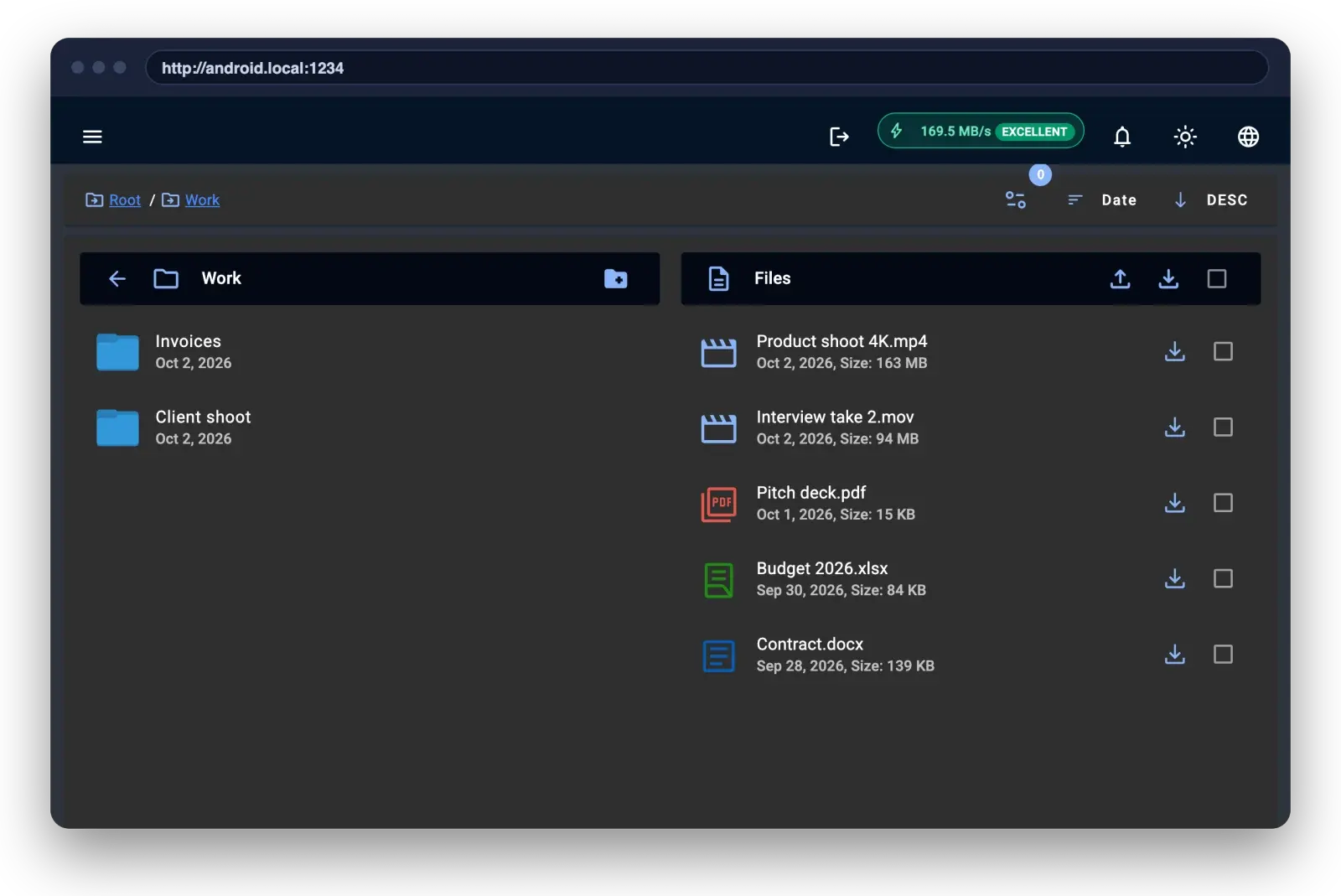
Your phone's files in any browser
Open the address the app shows in Chrome, Edge, Safari or Firefox on any computer on your Wi‑Fi. Nothing to install on the computer.
No internet needed
Files move over your own Wi‑Fi, so they never go to the cloud and don't use mobile data.
Download and upload
Save files to your computer, or send files from your computer to your phone.
FTP if you prefer
Connect to your phone with any FTP client instead of the browser.
Password protection
Set a username and password so only you can open your files.
Find any file fast
The browser view sorts your phone into Photos, Videos, Music, Documents and Recent files, and lets you search all of them.
Sorted by type
Jump straight to your photos, videos, music or documents.
Every folder
Open any folder on your phone, just like on your computer.
Search
Search your phone's files from the browser.
Send files from phone to phone
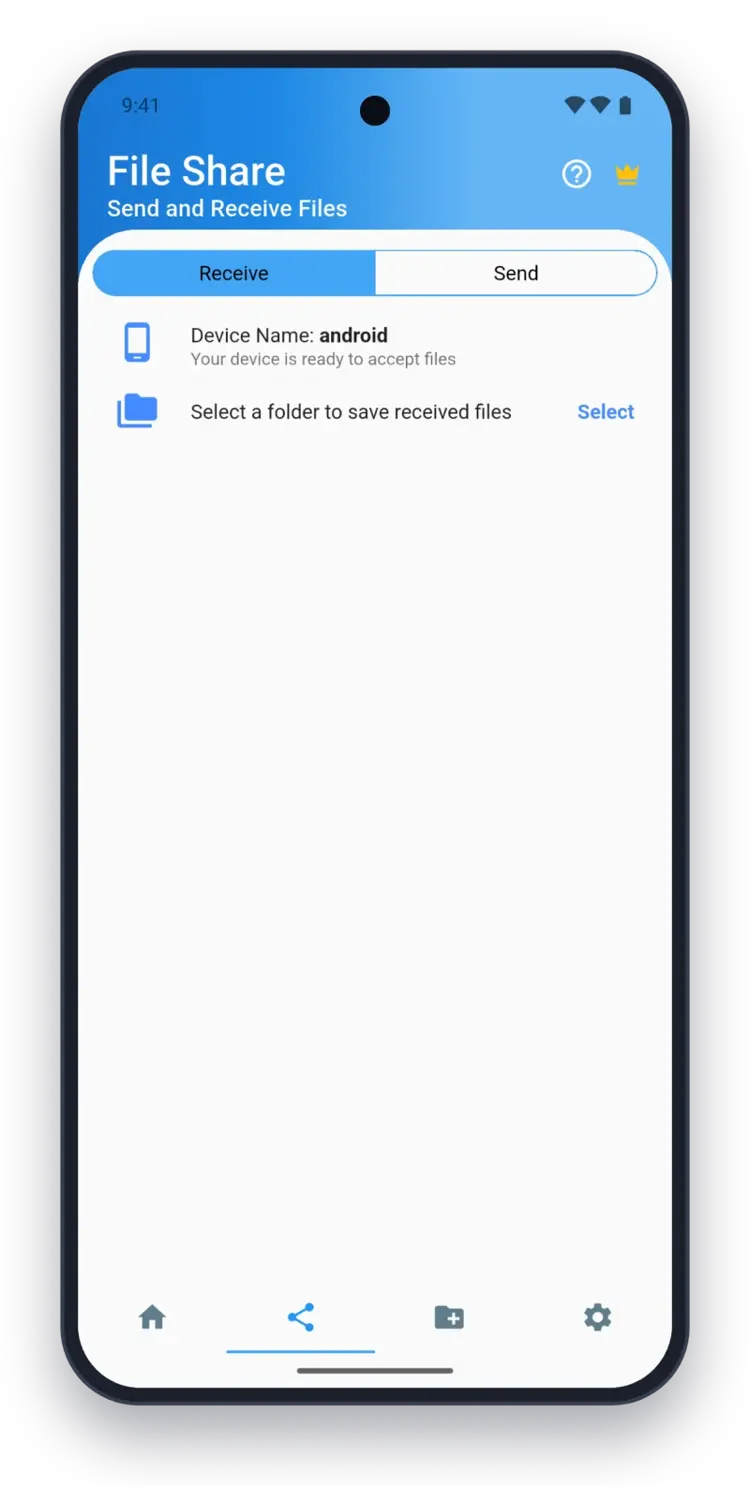
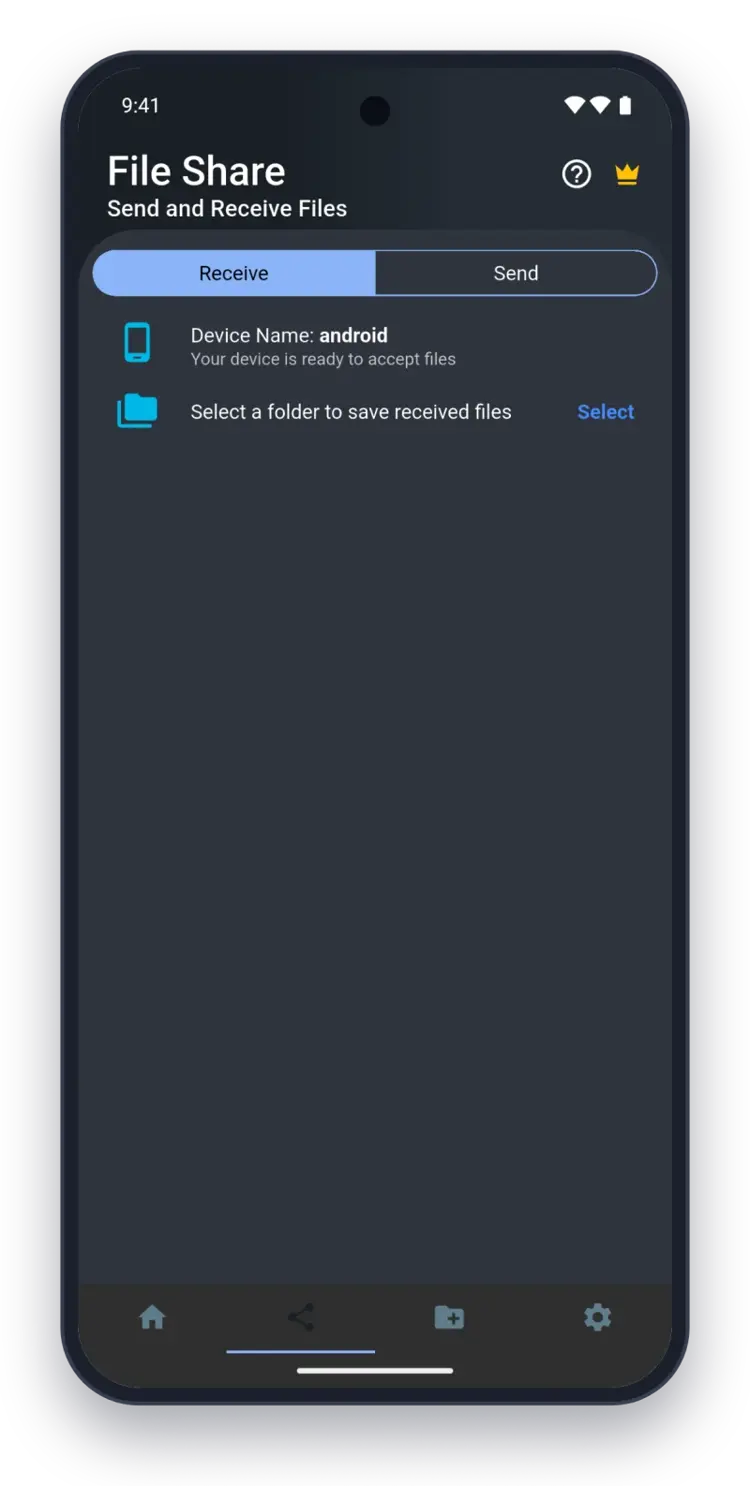
Phones and tablets running the app on the same Wi‑Fi find each other automatically. Pick a device and send.
Finds nearby devices
No addresses to type between phones.
You approve every connection
Accept or reject each incoming request.
Live progress
See how far along each transfer is.
Why use WiFi File Transfer instead of a cable or the cloud?
Nothing to install on your computer
Any browser on Windows, Mac or Linux works. No USB cable, no drivers, no extra software.
No account, no cloud
Files go straight from your phone to your computer over your own Wi‑Fi. Nothing is uploaded to the internet, and no mobile data is used.
Works both ways
Download from your phone to your PC, or upload from your PC to your phone. Prefer FTP? Connect with any FTP client.
How to transfer files between Android and PC over Wi‑Fi
- 1
Install WiFi File Transfer on your phone
Get the free app from Google Play and allow access to your files when it asks.
- 2
Connect both devices to the same Wi‑Fi
Your phone and computer need to be on the same network. The transfer itself doesn't use the internet.
- 3
Tap Start and open the address on your computer
The app shows an address like http://192.168.1.20:8080. Type it into any browser on your computer: Chrome, Edge, Safari or Firefox.
- 4
Download or upload files
Browse your photos, videos and folders, download what you need, or upload files from your computer to your phone.
Free does the basics. Pro does the heavy lifting.
| Feature | Free | Pro |
|---|---|---|
| Browse, download and upload files over Wi‑Fi | Included | Included |
| Send files from phone to phone | Included | Included |
| Transfers keep running with the screen off | Not included | Included |
| Download whole folders in one click | Not included | Included |
| Upload folders, copy and delete files from your browser | Not included | Included |
| SD cards and external storage | Not included | Included |
| Desktop app for Windows and Mac | Not included | Included |
| Ads | Yes | None |
| Price | Free | One payment, yours to keep |
Connect-or-Refund Promise
If WiFi File Transfer Pro can't connect your phone and computer, email us within 30 days. We'll help you fix it, or refund you in full.
See what Pro adds →360K+
Downloads across all our apps.
15,000+
People use WiFi File Transfer on Android every month.
2,600+
Customers have bought WiFi File Transfer Pro.